
Competition management
Division splits mid-event
How to run an event where everyone competes in a single division on day 1, then splits into separate tiers (e.g. RX / Inter) for the rest of the event.
When to use this
Some competitions seed athletes into a single combined division for opening workouts, then split the field into skill tiers based on day-1 rankings: typically one big division on day 1, with top performers continuing in RX while the rest move to an Intermediate tier for day 2.
WOD Lane supports this with two existing tools used together: division duplication (which you already use to set up parallel divisions) and the Top-N seeding bar on the leaderboard.
The workflow at a glance
- Create the combined division (e.g. "Open") and assign the day-1 workouts to it. Take registrations as usual.
- Run day 1. Score the workouts. The combined leaderboard ranks the entire field.
- When you're ready to split, duplicate the combined division once per target tier (e.g. one duplicate renamed "RX", another renamed "Inter"). Each copy inherits the same workouts and assignments.
- Open the combined division's leaderboard. Use the Top-N seeding bar to move the top N teams into RX, then move the remaining teams into Inter with a second pass.
- Assign the day-2 workouts to RX and Inter separately. Run day 2.
Step-by-step: duplicating divisions
From your competition dashboard, go to Structure → Divisions. Open the combined division and click "Duplicate". The form is pre-filled with the source division's settings: change the name (e.g. "RX"), pick a level, and save.
The duplicate includes the same workout assignments as the source, with each workout's order and day number preserved. This is what lets day-1 scores keep showing up on the new division's leaderboard once teams are reassigned.
Repeat for every tier you need (RX, Inter, Scaled, etc.). All duplicates must share the same team size and composition as the source. If they don't, you won't be able to seed teams into them.
Step-by-step: seeding teams with Top-N
From the combined division's leaderboard view (in the dashboard, not the public page), you'll see a seeding toolbar above the standings table:
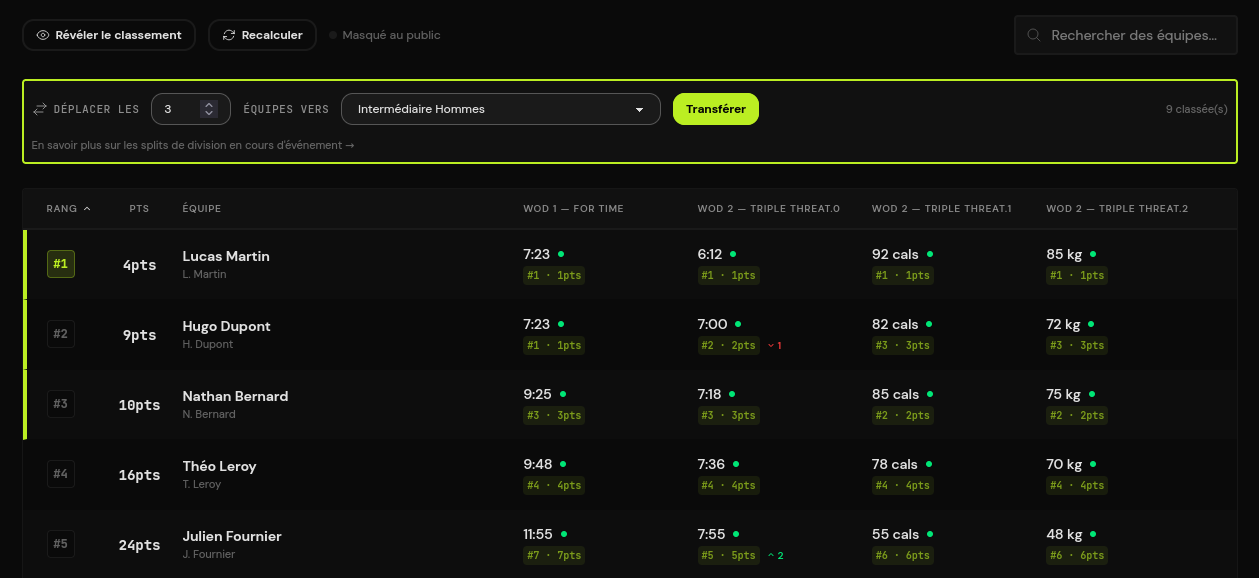
- Type the number of teams to move (e.g. 30). The corresponding rows are highlighted with a blue marker on the left so you can verify visually before clicking Apply.
- Pick the target division from the dropdown. Only compatible siblings (same competition, same team size, same composition) appear.
- Click Apply. You'll get a confirmation prompt before the move is executed.
- Repeat with a second pass to move the remaining teams into the lower tier (e.g. "top 9999 → Inter" effectively moves everyone left).
What happens to the scores
Scores are attached to the registration, not to the division. When you reassign a team:
- All existing scores stay attached to the team: nothing is deleted or rewritten.
- Scores for workouts that the new division also runs continue to count on the new leaderboard.
- Scores for workouts the new division doesn't include stay in the database but are silently ignored in scoring and display, so they won't pollute the new division's standings.
- If you move a team back to the original division later, all those scores resurface as if nothing happened.
Limitations and caveats
- Reassignment is manual: there's no automatic "top N from the rankings, apply the cut, done" button that runs without confirmation. The seeding bar always asks for confirmation before moving teams.
- Once teams are seeded into the tiered divisions, the original combined division's leaderboard becomes empty (all confirmed registrations have been moved out). Day-1 scores live under the new tier divisions.
- A team can only be reassigned to a division with the same team size and composition. Mixed-gender teams can't suddenly be moved into a male-only division, etc.
- Only confirmed registrations can be reassigned. Reserved or pending registrations need to be confirmed first (or cancelled).
Related actions
For one-off corrections (moving a single team between divisions without using the seeding bar) see Reassign a team .