
Registration
Managing registrations
What happens between an athlete clicking Register and their team standing at your check-in desk: the registration lifecycle, the dashboard list, who can change what, gating access, and event-day check-in.
The lifecycle of a registration
A registration holds its spot from the very first click, so your division can never oversell. But a held spot isn't a sold spot yet. The states, in order:
- Reserved: the athlete opened the registration form. The spot is held for 10 minutes while they fill it in.
- Pending payment: form submitted; the leader chooses to pay for the whole team (30-minute checkout window) or to split: each member then gets a payment email with a 48-hour deadline.
- Confirmed: payment complete (or free registration confirmed). The spot is permanently taken, teammates get their account-linking emails, and you get a confirmation email with how many spots remain.
- Cancelled: by the athletes, by you, or automatically when a reservation or payment deadline lapses. The spot returns to the pool on its own.
The registrations list
The Registrations section is your roster headquarters: status cards up top, then every team with its registration status, payment status, and check-in state. Searchable by athlete or team, filterable by division and status.
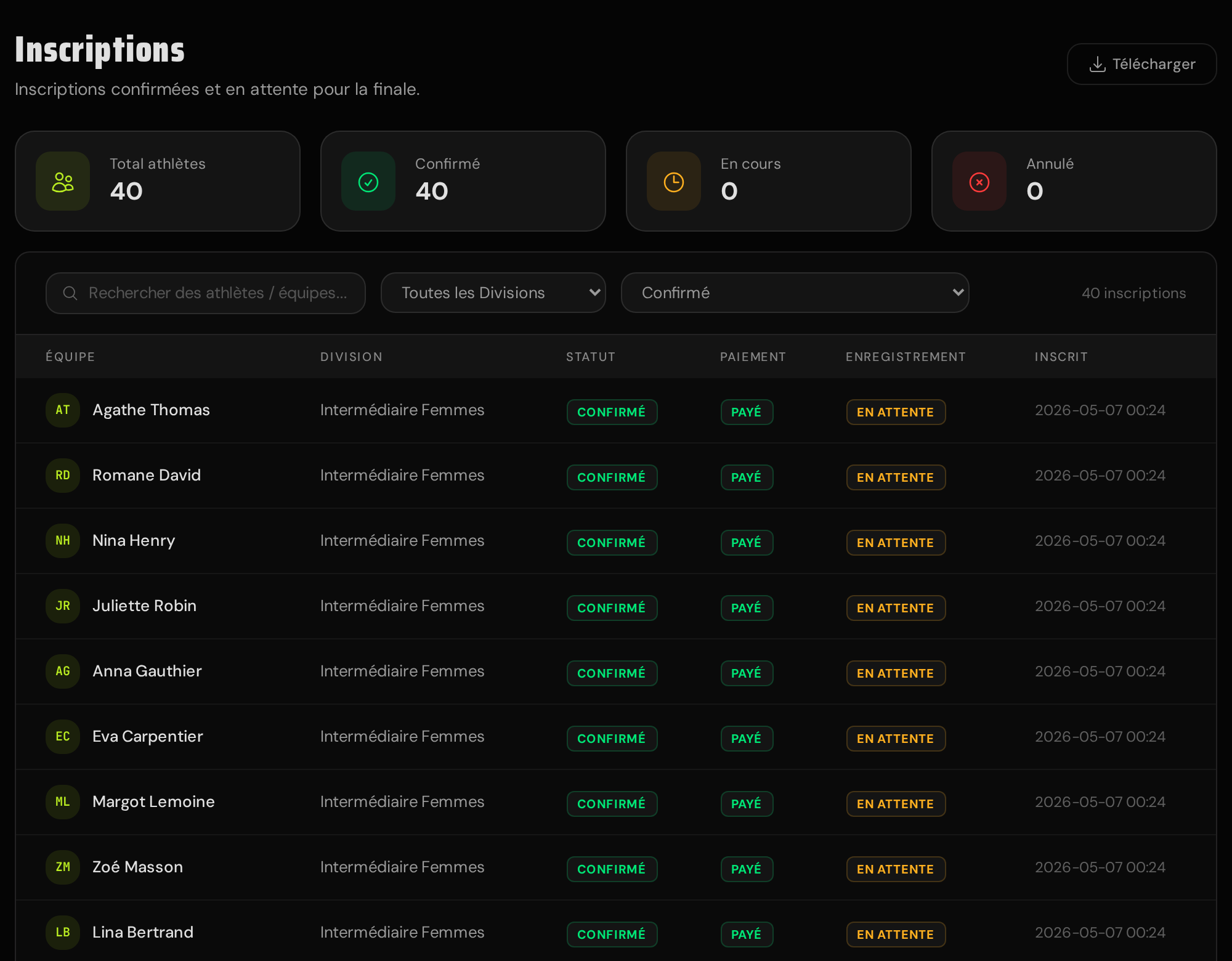
Click a team to open its detail page: full roster with each member's info and account-linking state, the payment breakdown (who paid what, and by when, in split mode), pack selections, and the action panel. Cancel with refund, move to a sibling division, or change the team's ranking status. Those flows have their own articles:
- Cancellations and refunds : every way money goes back.
- Reassign a team : moving a confirmed team between sibling divisions.
- Withdrawals and disqualifications : removing a team from the ranking without touching their spot.
Roster data: who fixes what
The leader types the whole roster at registration, so early data is often approximate. It corrects itself: each teammate gets an email to link their account, and once they do, their own athlete profile becomes the source of truth. A name or phone fix on their profile updates every roster they're on, past and present.
Confirmed teams can also self-edit a few things without asking you, until their division's registration closing date: the team name and each member's own pack options (that t-shirt size swap). What they can't touch (emails, gender, adding or removing members, adding new pack items) lands on your desk instead, by design: those changes have identity, composition, or money consequences.
Gating who can register
For an internal event (your gym's members only) set a registration access code on the Configuration page's Features section. The public page then shows a lock and an "Access code required" chip, and nobody reaches the form without the code (case-insensitive, and rate-limited against guessing). Clearing the field turns the gate off.
It's a shared community gate, not per-person access control: anyone can forward the code. For real per-person control, or to let specific people through a full or closed division, use invitations: invited athletes bypass both the access code and the participant limit when you allow it.
Check-in on event day
The Check-in page lists every confirmed team with a per-member toggle and a one-tap "check in all". Plus a progress header, state filters, and search. It syncs across devices in real time, so three volunteers with three phones can work the same queue.
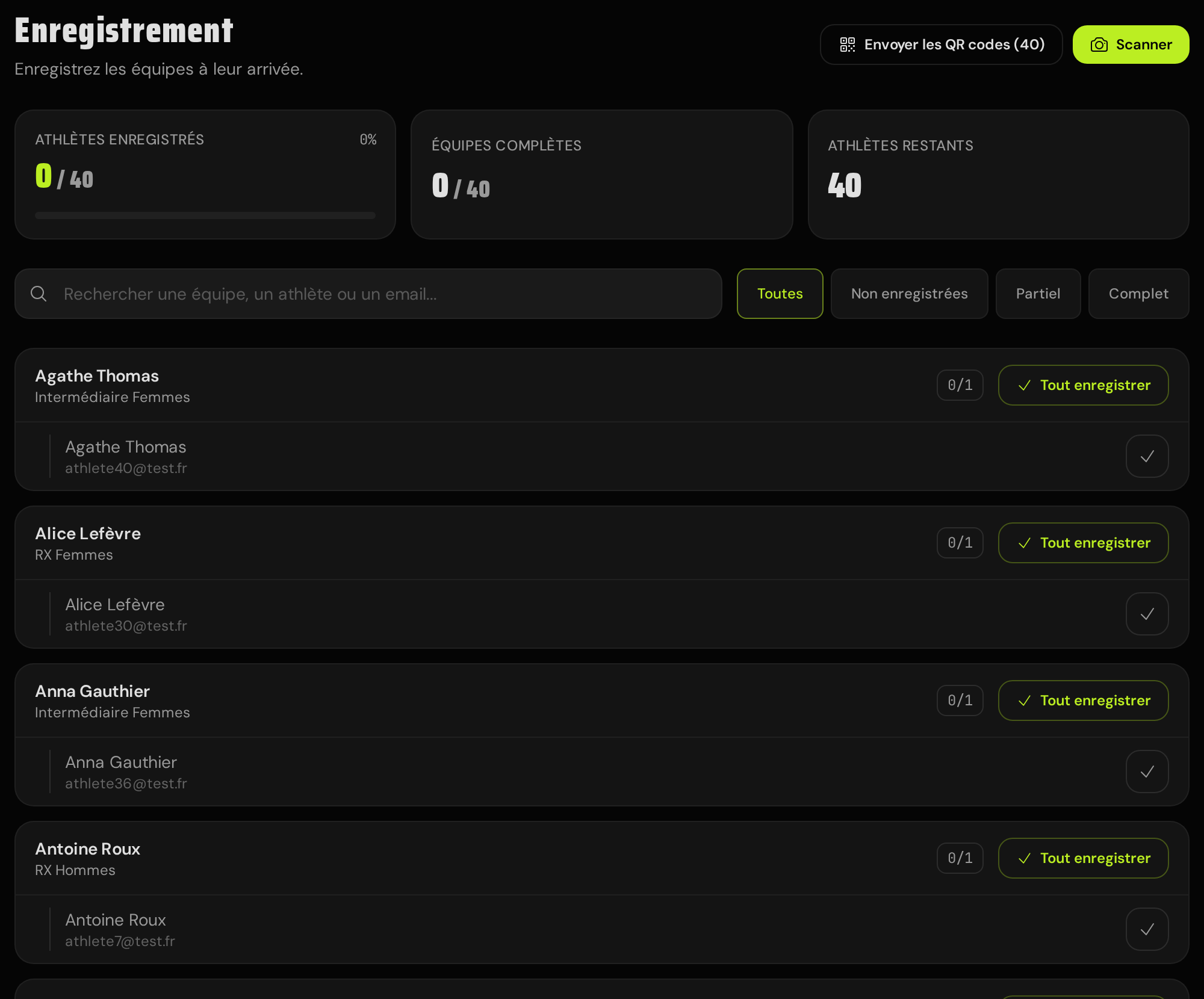
For bigger events, use the QR flow: "Send QR codes" emails every confirmed athlete a personal QR ticket (re-running it only targets athletes who never got one, so late registrations are easy to catch up). At the desk, the Scan button opens a camera scanner. A scanned ticket shows the athlete's identity card and checks them in on your confirmation, with a one-tap option to check in the whole team when they arrive together.