
Workouts & scoring
Score entry and leaderboards
Everything between a finished workout and a live leaderboard: how scores get into the system, how you review athlete submissions, how ranks and points are computed, and when the public actually sees the board.
How scores are organized
Scoring is team-level: one score per team per workout part, regardless of how many athletes are on the team. A single-part WOD needs one score per team; a two-part WOD needs two.
Every score is in one of three states:
- Pending: submitted by an athlete, waiting for your review. Does not count toward the leaderboard yet.
- Approved: verified by you, or entered directly by you. This is the only state that counts toward rankings.
- Rejected: turned down with a note (bad video angle, missed standard, …). Kept on record and reinstatable: never silently deleted.
Entering scores on-site
For in-person events, everything happens in the stage's Leaderboard section. Pick the division tab: you get the ranked standings table with one score cell per team per workout part.
- Click any score cell: empty or filled. A modal opens for exactly that team × workout part.
- Enter the score value, any tiebreak values, and optional judge notes. Submit. Scores you enter are approved immediately: no review step for your own entries.
- The leaderboard recomputes on its own within a second, for you and every open public leaderboard. There is no "publish scores" step after entry.
Reviewing online submissions
When a division has a submission window, team leaders submit their own scores with a video link and optional notes. Submissions arrive as pending: the team's row is highlighted and the score cell shows a pulsing yellow dot until you deal with it.
Clicking a pending cell opens the review modal: the submitted value and tiebreaks (editable. You can correct a miscount as you approve), the video link, the athlete's notes, and a judge-notes field. From there:
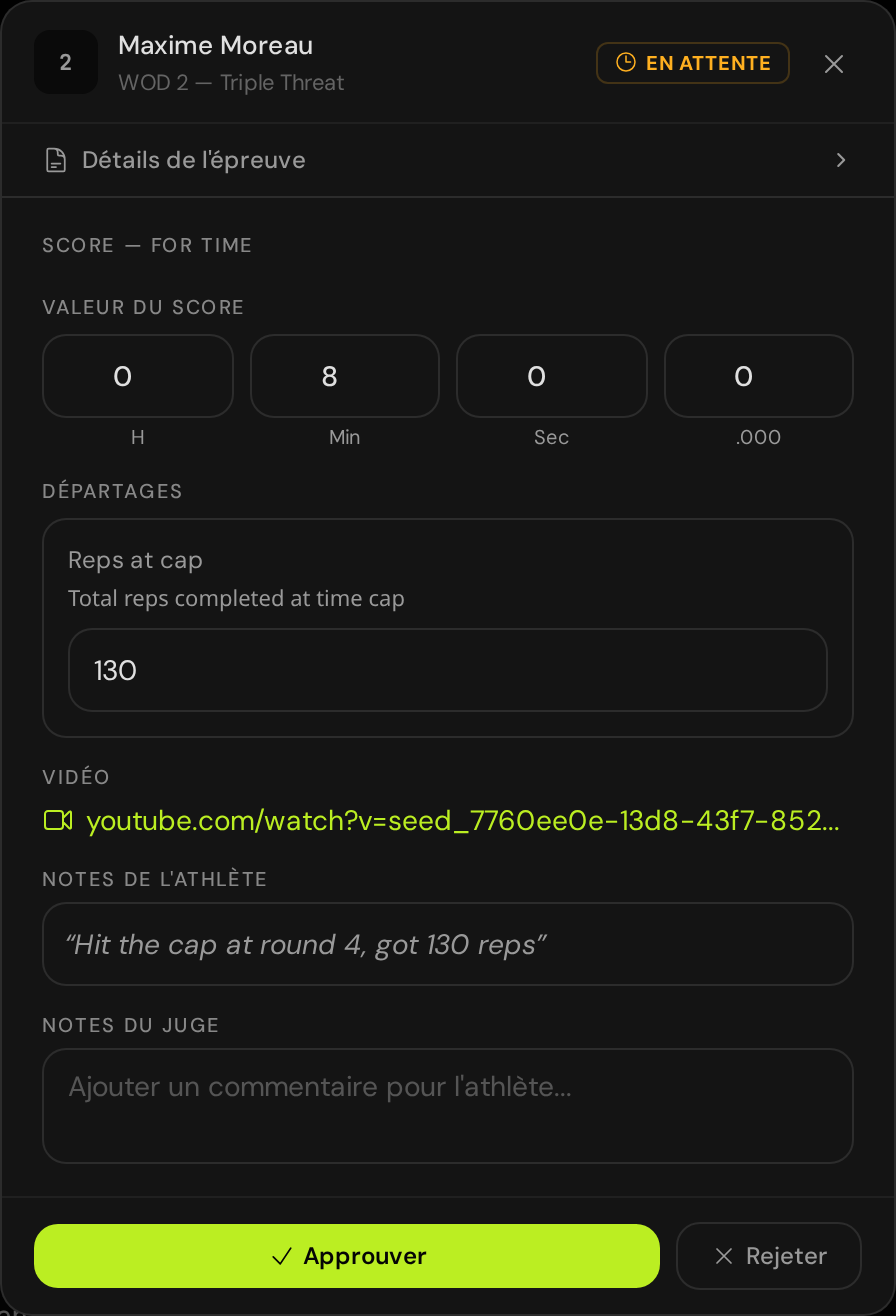
- Approve: the score starts counting toward the leaderboard immediately, with whatever corrections you made.
- Reject: write the reason in the judge notes; the team sees the rejection and your notes on their scores page.
- Reinstate: a rejected score can be brought back later (appeal accepted, second review), again with corrections if needed.
The scope's info card tracks where you stand: scores-entered progress, the submission window status and time remaining, and counts of approved / pending / rejected / missing scores.
How ranking works
Each workout part is ranked independently, then parts roll up into the overall standings:
- Teams are sorted by score value (direction depends on the score type: time ascending, reps descending, …). Exact ties are broken by the part's tiebreaks, compared in order; capped time scores rank below all finishers.
- Ties that survive every tiebreak share the same rank, and the next rank skips: 1, 1, 3. Never 1, 2, 3.
- A team with no approved score for a part takes the penalty rank: one place below the last team that scored. This matches the CrossFit Games online-stage rule. A missed workout hurts, but doesn't erase what the team earned elsewhere.
- Each rank converts to points using the scoring method (below), multiplied by the part's coefficient, and the points sum into the overall total.
Scoring methods
The competition sets a default scoring method on its Configuration page, and any division can override it on its own form: an online qualification division can use a points table while the finals run classic rank-equals-points. Three methods:
- Points ascending (CrossFit standard, the default): rank IS points: 1st = 1 pt, 2nd = 2 pts, …. Lowest total wins.
- Points descending: 1st gets N points (N = field size), 2nd gets N−1, and so on. Highest total wins.
- Custom points table (CF Games style): you define the points for each place (100, 94, 88, …); ranks beyond the table score 0. Highest total wins. The editor ships with the official CrossFit Games tables as presets, plus a linear generator and a free-form one-value-per-line mode.
In every method, tied teams each earn their shared rank's full point value: no averaging, no splitting. The public leaderboard states which direction wins for the scope you're looking at.
Reading the leaderboard
The standings table shows the global rank and total points, then one cell per workout part with the formatted score, its rank and points (#N · Xpts), the tiebreak values, and a status dot (green approved, yellow pending, red rejected). You can sort by any workout part's rank to see who won a specific event.
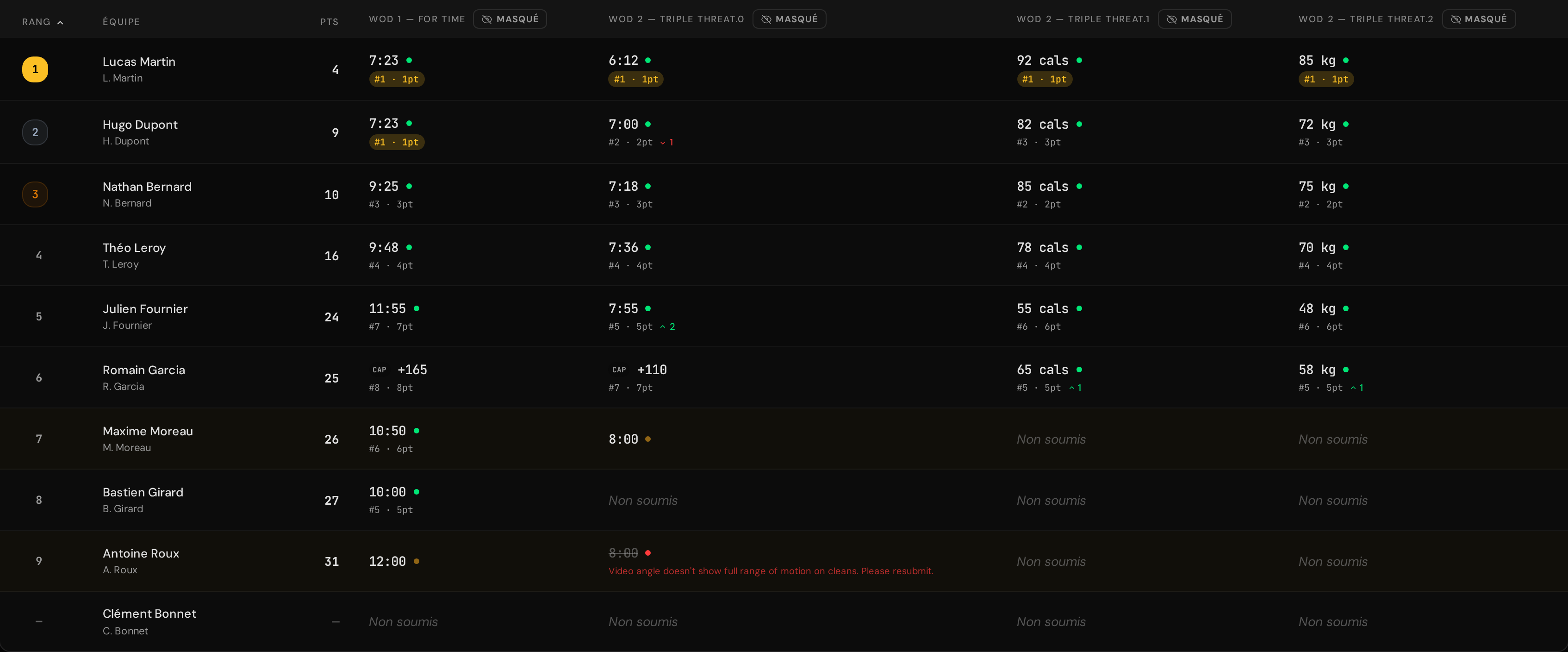
Position-change arrows next to each workout show how that workout moved the team in the overall standings: WOD 1 sets the baseline, and each later WOD shows the shift it caused compared to the standings before it. A green ▲2 means that workout gained the team two overall places.
Reveal: when the public sees it
As the organizer you always see live standings. The public leaderboard for a division stays hidden until you reveal it: the reveal/hide toggle sits in the Leaderboard section's controls bar, and it's reversible: you can hide the board during final reviews and re-reveal for the announcement.
Reveal operates per division and combines with the per-workout scores reveal described in the Workouts article: athletes see a workout's scores only when both the workout's scores are revealed and the division board is revealed.
Related articles: Workouts for building WODs, parts, coefficients, and tiebreaks; Withdrawals and disqualifications for removing a team from the ranking without touching their scores.