
Competition management
Heats and schedule
Turn confirmed registrations into a day plan athletes can find themselves on: set up venues, generate seeded heats per workout, fine-tune lanes by drag-and-drop, and publish the public schedule.
Venues
A venue is a physical spot where heats run: "Floor 1", "Outdoor track". Create them in the Schedule section's Venues tab with a name and a type (indoor, outdoor, or mixed); the type drives the colour stripe athletes see on the public schedule.
A venue is only a location label. Capacity lives on each heat (lanes per heat), so the same floor can host a 15-lane bodyweight WOD in the morning and a 6-lane barbell event in the afternoon. Two heats with the same start time in different venues run in parallel.
Generate heats
Heats are generated per workout and per division. Pick the workout, then set three things:
- Lanes per heat: how many teams run at once. This is a property of the workout, not the venue: a rower WOD might fit 6, a burpee WOD 15.
- First heat start: when heat 1 goes off.
- Transition: the gap between heats, added to the workout's time cap: each heat starts one time-cap-plus-transition after the previous. A negative transition makes heats overlap. Chase starts, where heat 2 launches before heat 1's cap.
Generation takes the division's confirmed teams and seeds them by current leaderboard rank. The default is the CrossFit convention (weakest teams in heat 1, strongest in the last heat, so the day builds toward the showcase) with a toggle to flip to strongest-first. Teams with no rank yet land in heat 1.
Adjust by hand
The generated plan is a starting point. Every heat row expands into its lane list, and from there:
- Drag teams between lanes and between heats of the same workout: expand several heats at once ("Expand all") to drag across them.
- Confirmed teams not yet in any heat sit in a per-workout unassigned pool. Drag them into a lane, or drag a team back to the pool to free its lane.
- Edit a heat inline: number, lanes per heat, start time, venue. Add an empty heat manually, or delete one. Its teams return to the pool.
- Reschedule a whole workout in one move by setting a new first-heat time and transition: every heat's start time is recalculated.
Divisions can share heats: generate each division's heats separately, then drag teams together into shared heats. Useful for filling lanes when two small divisions run the same workout back-to-back.
Publish the schedule
Athletes see nothing until you publish. There are two switches: the competition-level schedule reveal, and a per-workout schedule publish. So you can release Saturday's heats while Sunday's are still moving. As the organizer you always get a preview of the public page, flagged with a "not yet published" pill.
Once revealed, a Schedule link appears on the public competition page. Edits after publishing are safe: the public page updates live, so a lane swap or a rescheduled heat reaches athletes' phones immediately.
What athletes see
The public schedule is a day-by-day timetable: each day lists its workouts, each workout its heats grouped by start time. Heats sharing a start time are shown side by side as a parallel block with one card per venue, colour-striped and explained by a venue legend.
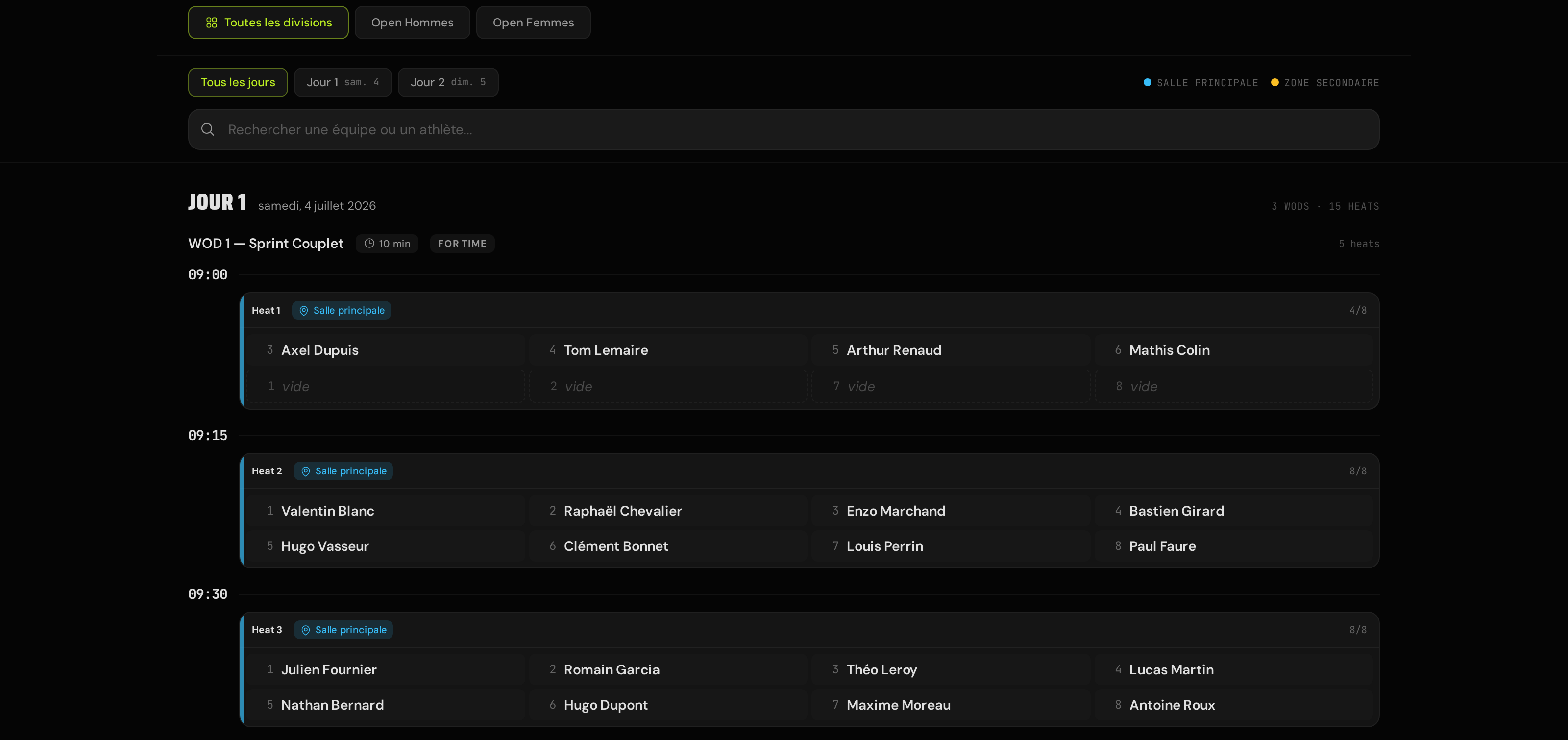
Each heat card shows its lane grid with team names. Athletes can search by team or athlete name, filter by day, and flip on "My schedule" to hide everything but their own heats: their lane is highlighted with a "Your heat" badge. Until a workout's content is revealed, the strip just says "Workout N", so the schedule doesn't leak your programming.